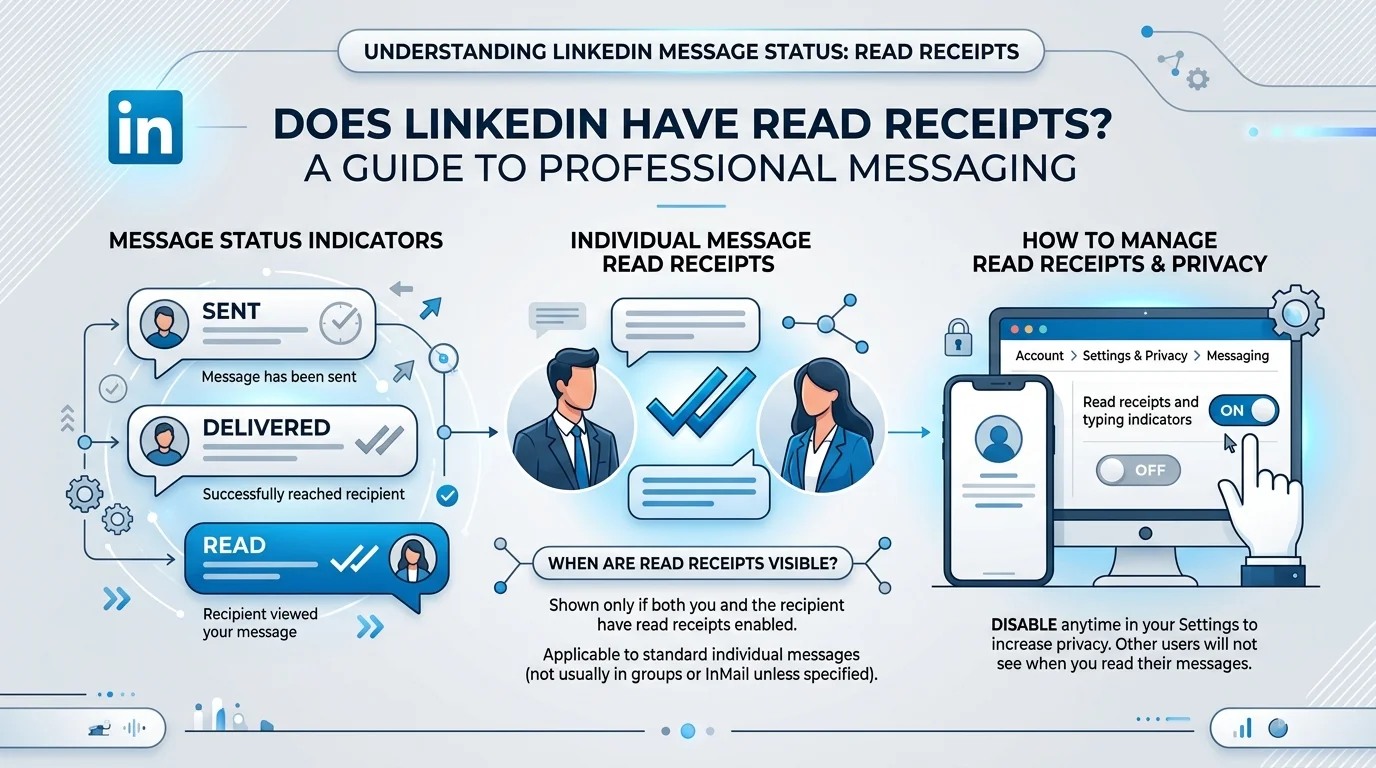
Does LinkedIn Have Read Receipts?. Yes — LinkedIn has read receipts. They're free, switched on by default, and mutual: both people need the setting enabled, or neither of you sees anything. That last detail explains almost every "why can't I tell if my message was read?" complaint.
Now the hook. You sent the message Monday. It's Thursday. Nothing.
In this guide I'll show you exactly how LinkedIn read receipts work, what every icon means, the four places the feature quietly stops working, and how to read a message without tripping the receipt.
Let's get into it.
LinkedIn read receipts are free on every account — Premium doesn't unlock a hidden "seen" indicator.
They're on by default, and they only work if both sender and recipient have them enabled.
The grey check mark means delivered, not read. The recipient's profile photo is the actual read receipt.
Standard InMail, unaccepted connection requests, and group chats don't produce receipts — but Sales Navigator InMail does.
Marking a message unread does not undo a receipt that already fired.
Think of them as LinkedIn's version of the WhatsApp blue tick — with one professional twist. A LinkedIn message read receipt is a small visual signal that appears under your sent message once the recipient opens the conversation. It travels alongside a second signal, the typing indicator, which shows when someone is composing a reply in real time. Together these are what LinkedIn calls delivery indicators. They exist to reduce guesswork. And honestly? They mostly work — until one condition isn't met.
That condition is mutuality.
According to LinkedIn's official help documentation, the toggle governs both directions at once. Switch it off and you become invisible and blind.
Which means the most common complaint online — "my read receipts on LinkedIn aren't showing" — usually isn't a bug. Someone toggled it off. Possibly you.
No, and this trips people up constantly. Let me kill the myth properly, because I've watched sales reps upgrade for exactly this reason and get nothing for their money. LinkedIn Premium does not unlock a hidden "seen" indicator that free accounts lack. Read receipts sit on the free tier for every single user, worldwide, on both web and mobile. What Premium actually buys you is volume and reach — InMail credits, expanded search, profile visibility.
It won't force a receipt to appear if your prospect disabled the setting.
If you're weighing an upgrade anyway, my breakdown of LinkedIn Premium vs Sales Navigator covers what each tier genuinely unlocks.
Don't be that person.
Here's where people genuinely get confused. LinkedIn doesn't use one icon — it uses a sequence of them, and they mean very different things. LinkedIn's own message indicators help page covers the basics, but the version below is the one I hand to clients. Read it once and you'll never misinterpret a grey check mark on LinkedIn again.
Icon | What It Actually Means |
|---|---|
Hollow circle | Sending — hasn't left your outbox |
Single grey checkmark | Sent to LinkedIn's servers |
Filled grey circle + checkmark | Delivered to their inbox — not read |
Recipient's profile photo | Read — this is the real receipt |
Three animated dots | They're typing a reply right now |
Red exclamation mark | Failed to send — retry or switch channels |
Clock icon | Scheduled message, waiting to send |
Notice what's happening there. The grey check is a delivery confirmation. The profile photo is the read status. Two separate events, and most articles smoosh them together — leaving readers convinced a grey tick means they've been ignored.
They haven't. It just means the message landed.
Hover your cursor over the delivered checkmark or the profile photo on desktop. You'll get an exact timestamp of when the message was opened.
Mobile doesn't do this. You see the symbol, never the time.
So if you're timing follow-ups seriously — and you should be — audit your sent messages from a laptop. That timestamp separates "they saw it and ignored me" from "they opened it at 11pm on a Sunday and forgot."
This is where I part ways with most of the internet. LinkedIn read receipts have hard boundaries, and if you don't know them you'll misread silence as rejection. Below is the full picture, verified against LinkedIn's help pages rather than the copy-paste guesswork circulating on marketing blogs. Bookmark this table — it answers about half the questions people ask on this topic.
Message Type | Read Receipt Available? |
|---|---|
Regular message, 1st-degree connection | ✅ Yes (if both parties enabled) |
Standard InMail | ❌ No |
Sales Navigator InMail | ✅ Yes — real-time |
Unaccepted connection request | ❌ Not until accepted |
Group chat | ❌ No per-person indicator |
Deactivated account | ⚠️ Delivers, never marks read |
Blocked by recipient | ❌ Thread disappears; status frozen |
Here's the nuance that separates this guide from the twenty others you skimmed.
Sales Navigator does deliver real-time read receipts and typing indicators on sent InMails, with responses sorted into Awaiting response, Accepted, and Declined.
So the blanket claim "InMail has no read receipts" is only half true. It holds for standard InMail. It's flatly wrong inside Sales Navigator.
If LinkedIn prospecting drives real revenue for you, that alone justifies the seat. You're not paying for messages — you're paying for the feedback loop that tells you when to follow up. That's the entire game.
Recruiter runs on its own messaging layer, separate from your standard inbox. InMail sent through Recruiter reports open and response data inside the platform's analytics rather than as an inline profile-photo receipt. So a recruiter may well know you opened their message even though you see no indicator on your end.
Worth knowing if you've ever assumed recruiter outreach was a black box.
Maybe you've decided the pressure isn't worth it. Fair enough. Plenty of professionals read a message, need a day to think, and don't want a receipt implying they're stonewalling. The menu path has shifted over the years, so I'll flag both versions you might encounter. Either way, this takes about twenty seconds.
On desktop:
Click your Me icon at the top of the homepage.
Select Settings & Privacy.
Click Data privacy in the left pane. (Some accounts show this under Communications — check both.)
Scroll to the Messaging experience section.
Click Read receipts and typing indicators.
Toggle Delivery indicators off.
On mobile:
Tap your profile photo (top left).
Tap Settings.
Open Data privacy.
Find Read receipts and typing indicators.
Switch it off.
Remember the trade. Off means invisible and blind.
This is the highest-intent question in the entire topic, and it has one honest answer plus one persistent myth. I'm covering both because the myth is everywhere and it will eventually cost someone a deal. Let's take the working method first, then dismantle the one you've probably read about on three other sites this week.
What works: mobile notification previews. On the LinkedIn website, a message must be opened for read status to update. In the mobile app, with push notifications enabled, you can read the preview from your lock screen without opening the chat — and no receipt fires.
What doesn't: airplane mode. Enable it, open the message, close the app, reconnect. It's unreliable and platform-dependent. I wouldn't bet a deal on it.
No. And this surprises everyone.
Marking a thread unread doesn't reset anything. Once the sender saw your profile photo appear, it's permanent. You're flagging the conversation for yourself, not covering your tracks.
The read receipt is a one-way event.
Cross-device sync lags. You might read something on your phone while your desktop inbox still shows the blue unread badge. The receipt already fired on the sender's end — your own inbox just hasn't caught up.
Does LinkedIn have read receipts?
Yes. They're enabled by default for all users and appear as the recipient's profile photo beneath your sent message.
Can the recipient tell if I turned read receipts off?
Not directly. They'll simply never see a read indicator from you — which is indistinguishable from you never opening the message.
Does a grey check mark mean my message was read?
No. Grey check means delivered. Only the profile photo icon confirms it was read.
Do InMail messages have read receipts?
Standard InMail, no. Sales Navigator InMail, yes — in real time.
Are LinkedIn read receipts available on free accounts?
Yes. It's a free-tier feature; Premium adds no extra read visibility.
Can I see read receipts in a LinkedIn group chat?
No. Group threads don't show per-person read indicators.
Does marking a message unread notify the sender?
No, and it doesn't remove a receipt that already fired.
Why aren't my read receipts showing?
Almost always because you or the recipient has the toggle switched off. It's mutual.
So — does LinkedIn have read receipts, and should you use them? Yes, and yes.
I leave mine on and I'd push you to do the same.
Sure, receipts create an unspoken expectation of a fast reply, and delay can read as disinterest. But switching them off doesn't remove that pressure. It just blinds you to whether your LinkedIn outreach is landing at all.
And once you know a message was opened, the next question is what to actually send — which is where the right AI tools for LinkedIn DMs and messages turn a read receipt into a reply.
Visibility beats comfort. Every time.

Daniel Harper is a B2B marketing consultant who helps professionals and founders grow their LinkedIn presence through smart engagement strategies. He writes about AI tools, reply tactics, and building authentic professional networks that actually convert.
AIReplyBee is your AI-powered LinkedIn reply generator that helps you create authentic, engaging responses in seconds.
Generate your first replyWhat is a collaboration post? Learn how Instagram collab posts work, why they boost reach, and how to set one up step-by-step.
InMail on LinkedIn lets you message anyone, even outside your network. See how it works, pricing, credits, and tips to boost replies.
Learn how to use ChatGPT effectively with the PTCF framework, 7 practical steps, and a real before/after example that actually works.