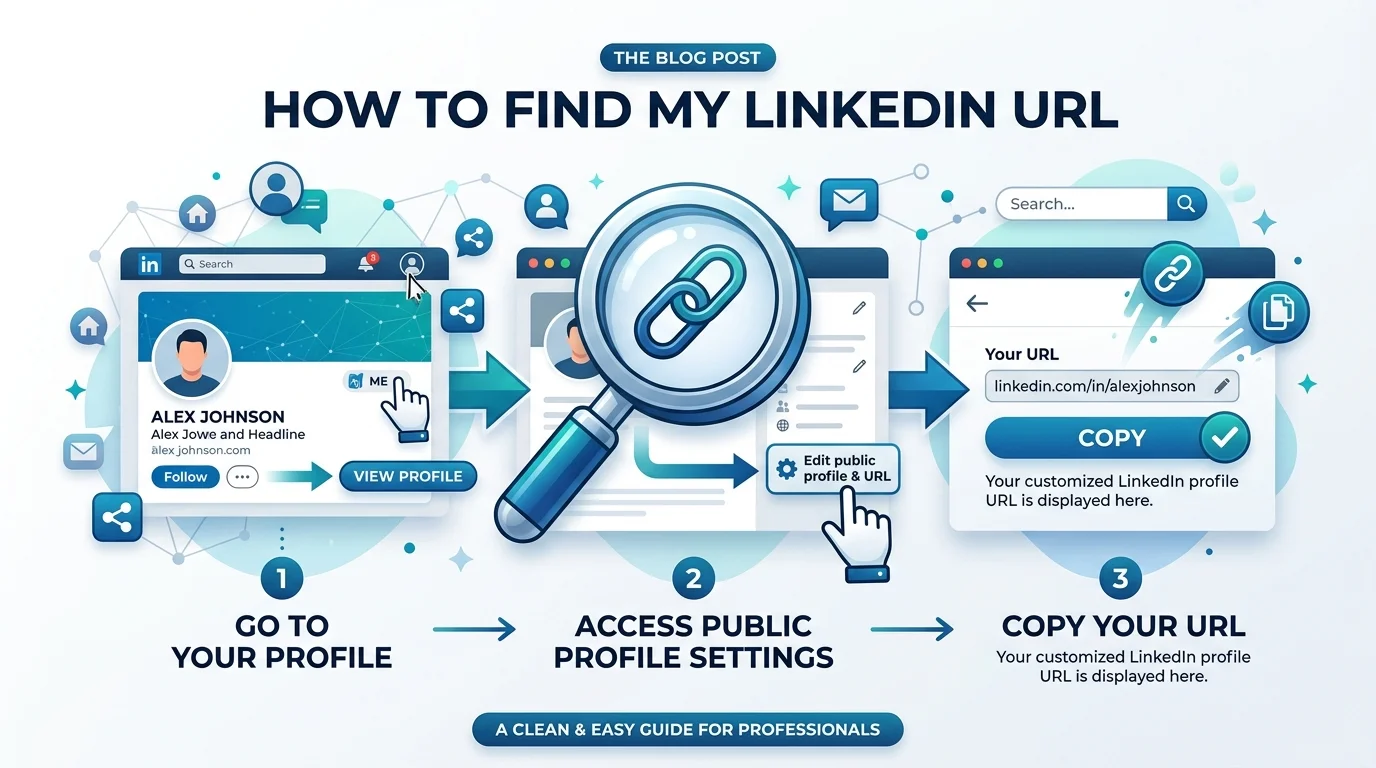
How Do I Find My LinkedIn URL?. Your LinkedIn URL is linkedin.com/in/yourname. On desktop, click Me → View Profile and copy it from your browser's address bar or the "Public profile & URL" panel on the right. On the mobile app, tap your profile photo → More → Contact info, and it sits under "Your Profile."
That's the answer. Everything below turns that link into something that actually works for you.
I've customized more LinkedIn profiles than I can count — my own, my team's, and a few dozen for clients who swore their profile link had vanished overnight. The pattern never changes. People know the URL exists somewhere. They just can't find where LinkedIn hid it.
Finding it is the easy part.
Making it worth sharing is where almost everyone fumbles.
Before you go hunting for something, it helps to know what you're hunting for. A LinkedIn URL is the unique web address that points directly to your profile page — the same way your website has a domain and your email has an @ symbol. Think of it as your digital handshake. When a recruiter pastes it into a browser, they land on you. Not a search results page. Not a maybe-this-person. You.
And the structure matters more than you'd think.
Every profile link follows the same shape: linkedin.com/in/username. That /in/ is doing real work — it stands for individual, which makes it the single most reliable signal that a link points to a human being rather than a business.
Companies get something different. LinkedIn company pages use linkedin.com/company/name, and groups use linkedin.com/groups/id.
The part after /in/ has a name too. It's called your vanity slug or public identifier. That's the piece you're allowed to change.
When you signed up, LinkedIn handed you an auto-generated link. Something like linkedin.com/in/jane-doe-3b8294a7f.
Random. Forgettable. Slightly embarrassing on a business card.
That alphanumeric tail exists because there are a lot of Jane Does across LinkedIn's one-billion-plus members, and the platform needed to tell you apart. Perfectly fine for the algorithm. Genuinely terrible for your personal branding. If you're cleaning up your profile properly, pair this with our LinkedIn headline examples guide — the headline and the URL are the two fields recruiters register first.
There are four reliable routes to the same link, and the right one depends entirely on which device is in your hand right now. Below is the full comparison so you can pick without guessing. Notice that every single method returns an identical URL — the only real difference is how many taps it costs you, and whether you need to be logged in at all.
Method | Device | Steps | Login required? | Speed |
|---|---|---|---|---|
Browser address bar | Desktop | Open profile → copy URL | Yes | Fastest (~5 sec) |
Public profile & URL panel | Desktop | Me → View Profile → right pane | Yes | Fast (~10 sec) |
Contact info | Mobile app | Photo → More → Contact info | Yes | Medium (~20 sec) |
Google search | Any device | Search | No | Medium (~20 sec) |
On a laptop, this takes roughly nine seconds. There are two routes: the official one runs through your profile settings, while the lazy one just reads your address bar. Both hand you the identical LinkedIn profile link, so don't overthink it — pick whichever your muscle memory prefers and move on.
Here's the step-by-step guide:
Log into LinkedIn on your computer.
Click the Me icon at the top of your homepage.
Select View Profile from the dropdown.
Look at the right pane. Under Public profile & URL, your link is displayed in full.
Copy it, then paste it wherever you need it.
Now the shortcut.
While you're viewing your own profile, glance up at the browser address bar. That URL — beginning with www.linkedin.com/in — is your link. Hit Ctrl+C on Windows or Cmd+C on Mac.
Same link. Fewer clicks.
Mobile is where people get stuck, and honestly, I understand why. There's no address bar to peek at, and LinkedIn tucks the public profile URL inside a submenu that nobody stumbles into by accident. But walk the path once and you'll remember it forever. It works identically on both iPhone and Android.
Follow this exactly:
Open the LinkedIn app and tap your profile photo.
Tap your profile photo again to open your full profile.
Tap the More icon next to the Add section button.
Tap Contact info.
Under Your Profile, your URL appears — starting with www.linkedin.com/in.
Tap it to copy.
Want to skip all of that? Use the share sheet instead.
Open your profile, tap the three-dot menu, and choose Copy link to profile. The URL lands on your clipboard instantly, ready to drop into WhatsApp, email, or a text message.
I use this one roughly 90% of the time.
This is the section that genuinely changes outcomes for you. Finding the link is trivial. Turning it into a clean, memorable custom LinkedIn URL is the move that makes your resume look intentional instead of rushed. And here's the part most people never realize — it costs nothing. You don't need Premium. Any member can claim a vanity URL, and they're allocated first come, first served.
So claim yours before somebody with your name does.
Here's how:
Go to Me → View Profile.
Click the Edit icon next to Public profile & URL on the right pane.
Under Edit your custom URL, click the pencil icon.
Type the last part of your desired link.
Click Save.
LinkedIn enforces these strictly, so read them once and save yourself a frustrating error message. The change limit in particular deserves more respect than it usually gets.
Rule | Requirement |
|---|---|
Length | 3–100 characters |
Allowed characters | Letters, numbers, hyphens |
Not allowed | Spaces, symbols, the word "LinkedIn" |
Change limit | 5 times per 180 days |
Redirect from old URL | None |
Availability | First come, first served |
Cost | Free — no Premium required |
Read that again, because it catches people off guard constantly.
When you change your profile slug, every link pointing to the old one breaks instantly. That resume PDF sitting in someone's inbox? Dead link. Your website footer? Dead. Your conference speaker bio from last spring? Also dead.
So do a link audit the same day you make the change. Update your email signature, your resume, your portfolio, your GitHub, your Linktree. All of it.
Then pick your vanity slug once and keep it.
I want to make the stakes concrete, because "clean up your link" sounds like cosmetic advice right up until you see the numbers. Your profile isn't a vanity project — it's the second impression hiring teams form after your resume, and increasingly it's the first. Recruiters cross-reference it. Clients check it before replying. Search engines index it and surface it when someone Googles your name.
The data backs this up hard.
More than 78% of recruiters use LinkedIn to find and research candidates, and some research suggests 40% of employers won't consider you at all without a profile.
Better still: a ResumeGo field experiment cited by Statista found that applicants with a comprehensive profile earned a 71% higher callback rate — 13.5% versus 7.9%.
That's not a rounding error. That's a different job search entirely.
Your resume header comes first, sitting right beside your phone number and email, where recruiters scan before anything else.
Keep it as plain text on its own line. Applicant tracking systems frequently miss icon-only buttons and footer tables, so skip the decorative formatting. You don't need the https:// prefix, and you don't need a "LinkedIn:" label either — everybody recognizes linkedin.com/in/ on sight.
After that, add it to your email signature, your digital business card, your QR code, and your bio links. A clean URL is only step one, though. Once people start clicking it, what they find has to hold up — which is exactly what our LinkedIn personal branding guide walks you through.
Recruiting, prospecting, or reconnecting with a contact whose last name you only half-remember? The same principles apply, just from the outside looking in. Three methods cover nearly every scenario — and the second one works even when you're completely logged out.
LinkedIn search: Type their full name, add their company if you know it, then apply the People filter in the sidebar. Open the profile and copy the address bar.
Google site: operator: Run site:linkedin.com/in "Full Name" "Company". This surfaces public profiles only, but requires no login whatsoever.
Company page → People tab: Open the organization's LinkedIn page and click People to browse employees by role. Ideal for pinpointing a hiring manager.
Meanwhile, for a company page URL, simply open the page and copy the linkedin.com/company/name address straight from the bar.
Sometimes the link genuinely isn't there, and the panic feels real. Almost always, though, it's one of four fairly boring causes rather than a broken account. Work through them in this order, because I'd bet money the first one solves it for you.
Your public profile is switched off. LinkedIn only displays a shareable URL when profile visibility is enabled. Toggle it on under Public profile & URL.
You're in the wrong account. Managing multiple profiles? Double-check which one you're signed into.
It's a display glitch. Try incognito mode or a different browser entirely.
Changes haven't propagated yet. Recent privacy edits or URL changes can take time to update across LinkedIn's network.
These are the questions I field most often, each answered in a line or two so you can scan straight to yours without hunting.
Is a LinkedIn URL the same as a username? Not quite. Your username is the slug that comes after /in/; the URL is the complete clickable address that contains it.
Do I need Premium to customize my LinkedIn URL? No. Custom vanity URLs are entirely free for every LinkedIn member.
How many times can I change my LinkedIn URL? Up to five times within any rolling 180-day period.
Does my old LinkedIn URL redirect to the new one? No. LinkedIn does not forward old URLs, so every existing link breaks the instant you change it.
Why is my LinkedIn URL full of random numbers? LinkedIn appends an alphanumeric string to distinguish you from members sharing your name. Customizing removes it.
Can I track clicks on my LinkedIn URL? Not natively — LinkedIn provides no click analytics on profile links. You'd need UTM parameters or a branded shortener, and neither one identifies who clicked.
Can I find someone's LinkedIn URL without connecting first? Yes, provided their public profile is enabled. Both LinkedIn search and a Google site: query work fine.
Why can't I see my URL on the mobile app? Usually an outdated app version or a disabled public profile. Update the app, then verify visibility settings in a desktop browser.
Finding your LinkedIn URL takes under a minute. Customizing it takes two. Together, they cost you less time than reading this article — and they quietly change how every recruiter, client, and hiring manager perceives you the moment they click.
So do it now, in this exact order: find your URL, claim a clean vanity slug, audit every place the old link still lives, then drop the new one into your resume header and email signature today.
Your next opportunity is going to click that link.
Make sure it lands somewhere worth landing.

Thomas Whitfield is a career coach and personal branding specialist who helps professionals at every level build a compelling LinkedIn presence. He writes about networking, visibility strategies, and using AI to stand out in competitive industries.
AIReplyBee is your AI-powered LinkedIn reply generator that helps you create authentic, engaging responses in seconds.
Generate your first replyWhat is a collaboration post? Learn how Instagram collab posts work, why they boost reach, and how to set one up step-by-step.
InMail on LinkedIn lets you message anyone, even outside your network. See how it works, pricing, credits, and tips to boost replies.
Learn how to use ChatGPT effectively with the PTCF framework, 7 practical steps, and a real before/after example that actually works.