To block someone on LinkedIn, open their profile, click the More (…) button, select Report/Block, choose Block [name], and confirm. LinkedIn doesn't notify them. You can block up to 1,400 members, and you must wait 48 hours before re-blocking anyone you've unblocked.
Now — look, I'll be honest with you.
Nobody opens LinkedIn hoping to deal with a creep, a spammer, or that one ex-colleague who won't take a hint.
But here we are.
In eleven years of coaching professionals through their LinkedIn presence, I've had this conversation more times than I can count — usually in a lowered voice, usually with someone who feels vaguely guilty about it. So I went and checked LinkedIn's own documentation properly, and found something odd: most articles about blocking on LinkedIn are wrong. Not slightly wrong. Factually wrong, about limits and rules that actually matter.
So I wrote this one.
Here's where people get confused, and I don't blame them. On Instagram or X, blocking feels like a one-sided mute button. On LinkedIn? Different beast entirely. Blocking on LinkedIn is mutual — a total blackout in both directions. You vanish from their world, they vanish from yours. Before you tap that button, you should understand exactly what you're trading away, because two of these consequences are permanent. Genuinely permanent. As in, unblocking will not undo them.
When you block a LinkedIn member:
Neither of you can view the other's LinkedIn profile
Neither of you can send messages
Your connection is removed automatically
They can't engage with your posts or content
You disappear from each other's search results
And here's the part almost nobody mentions.
Any recommendation they wrote for you is gone. Permanently. LinkedIn's own documentation confirms recommendations from a blocked member cannot be reinstated, even after you unblock.
I've watched a client lose a five-year-old recommendation from a VP this way. She blocked in a bad week and never got it back.
So screenshot it first. Trust me on this one.
Blocking isn't always the right tool. Sometimes you just want the noise gone without nuking the relationship. Here's how the four options compare so you can pick the lightest one that solves your actual problem.
Block | Remove Connection | Unfollow | Mute | |
|---|---|---|---|---|
Notifies them? | No | No | No | No |
Can they see your profile? | No | Yes (per your privacy settings) | Yes | Yes |
Can they message you? | No | Yes | Yes | Yes |
Reversible? | Yes (48-hour rule applies) | Yes (new request needed) | Instantly | Instantly |
My rule of thumb: unfollow for annoying, remove for distant, block for unsafe.
And if the problem is a request you sent that you now regret rather than an inbound one, blocking is overkill — you can just cancel a pending LinkedIn connection request instead, quietly and with no record left behind.
I get asked this more than anything else, and the anxiety behind it is real. Maybe you're dealing with LinkedIn harassment. Maybe it's a hostile ex-coworker. Maybe you just don't want drama at the next industry mixer. Whatever your reason, you deserve a straight answer instead of vague hedging.
LinkedIn does not notify the person you block. No alert. No email. Nothing.
But — and this matters — LinkedIn's official overview says the blocked member won't be notified "in most cases."
That hedge exists for a reason.
The exception: if you're blocking someone you currently share (or previously shared) a LinkedIn Recruiter account with, LinkedIn reserves the right to tell them.
Recruiters, take note.
Small detail, big tell. When you block someone, your endorsements and recommendations on their profile quietly disappear. An observant person notices. Nothing you can do about it — just don't be blindsided when they message you from a second account asking what happened.
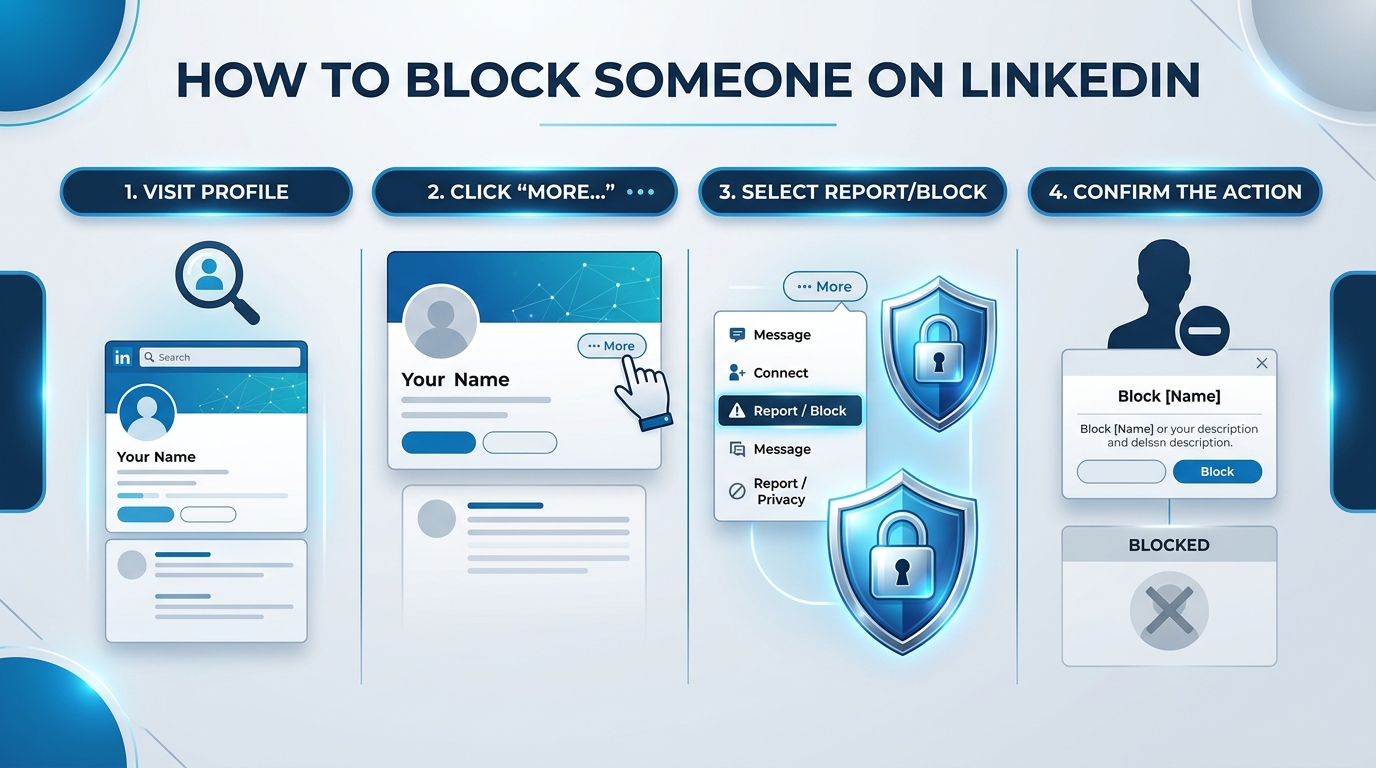
The actual mechanics take under sixty seconds. The process is nearly identical across devices, but the mobile menu sits in a different spot and that trips people up constantly. I'm covering both.
On Desktop:
Navigate to the person's LinkedIn profile page
Click the More button (the "…" icon) below their profile photo
Select Report/Block from the dropdown
Choose Block [member name]
Confirm by clicking Block
On Mobile (iOS and Android):
Open their profile in the LinkedIn app
Tap the three dots in the top-right corner
Tap Report/Block
Tap Block [name]
Confirm in the pop-up
Done.
Weird glitch, but it happens. Occasionally the option won't appear for certain first-degree connections. TechFinitive spotted this too, and their fix is the one I'd use: Remove Connection first, refresh, then block.
One thing worth ruling out first: if the button is missing across several profiles, the problem probably isn't the profiles. Account limitations hide features exactly like this, so check whether your LinkedIn account has been restricted before you go hunting for workarounds.
Here's the real problem with the standard method — to block someone, you have to visit their profile, and LinkedIn tells them who viewed it. So the person you're escaping gets a notification that you were just looking at them. Awkward at best. For anyone with a genuine safety concern, dangerous. Luckily the workaround takes thirty seconds.
Switch on private mode before you visit:
Click Me in the top-right corner
Select Settings & Privacy
Click Visibility
Choose Profile viewing options
Select Private mode or Anonymous LinkedIn Member
Now visit their profile and block them.
Per LinkedIn's visibility documentation, private-mode viewers can't be identified — not even by Premium accounts.
Honestly? Leave this on permanently.
Even better, if it's available. Already have a message thread? Skip their profile entirely. Open LinkedIn Messaging, find the conversation, click the three dots in the chat window, hit Report/Block. No profile visit, no view record. The catch: no existing thread, no shortcut.
People change. You might block in anger and reconsider a month later. Unblocking on LinkedIn is simple, but there's a trap waiting on the other side that catches almost everyone.
Go to Settings & Privacy → Visibility → Blocking
Find the person in your blocked list
Click Unblock
Re-enter your password
Confirm
Effective immediately. There's no bulk unblock — one at a time.
This is the section I really wrote this article for. While researching, I found the same errors repeated across dozens of high-ranking blogs — including some published by companies selling LinkedIn automation tools.
Rule 1: The limit is 1,400 — not 1,500. Half the internet says 1,500. LinkedIn says 1,400.
Rule 2: The 48-hour re-block rule is real. Unblock someone and you cannot re-block them for 48 hours. So don't unblock just to peek — you're exposed for two full days.
Rule 3: Unblocking doesn't restore your connection. Send a fresh connection request. Old messages return; the relationship resets to zero.
Turnabout time. There's no notification when you get blocked, but there are reliable signals — and one common false alarm worth ruling out first.
Signs you've been blocked:
Their profile shows "This profile is not available"
They've vanished from your connections list
Their endorsements on your profile disappeared
Search doesn't return them, but a mutual connection can still see them
The false alarm: a deactivated or restricted account looks identical. Ask a mutual contact to check before assuming.
Blocking protects you. Reporting protects everyone else. If the behavior crosses into threats, scams, or genuine abuse, blocking alone lets that account keep operating on other people.
LinkedIn's harassment policy says to click the More icon on the message, post, or comment → Report → select Harassment.
Then block.
Do both. Not one.
No. LinkedIn sends no alert, email, or notification. The one exception is if you share (or shared) a LinkedIn Recruiter account with them — LinkedIn reserves the right to notify in that case.
1,400 members. Many blogs incorrectly state 1,500; LinkedIn's Help Center confirms 1,400.
Only via an existing message thread. Otherwise, switch to private mode first so your visit stays anonymous.
No. Old threads stay in your inbox. Delete or archive them manually if you want them gone.
No. Blocking is mutual — they can't see your profile or content through any path.
48 hours after unblocking. No exceptions.
Blocking is a boundary, not a betrayal. You don't owe anybody continued access to your professional life.
Remember the three rules: 1,400 is the cap, 48 hours is the cooldown, and unblocking never restores your connection.
Flip on private mode, screenshot anything valuable, then block without guilt.
Read Also: How Do I Find My LinkedIn URL? 2026 Guide
Thomas Whitfield is a career coach and personal branding specialist who helps professionals at every level build a compelling LinkedIn presence. He writes about networking, visibility strategies, and using AI to stand out in competitive industries.
AIReplyBee is your AI-powered LinkedIn reply generator that helps you create authentic, engaging responses in seconds.
Generate your first replyWhat is a collaboration post? Learn how Instagram collab posts work, why they boost reach, and how to set one up step-by-step.
InMail on LinkedIn lets you message anyone, even outside your network. See how it works, pricing, credits, and tips to boost replies.
Learn how to use ChatGPT effectively with the PTCF framework, 7 practical steps, and a real before/after example that actually works.