To delete LinkedIn account, go to Settings & Privacy → Account preferences → Account management → Close account, pick a reason, enter your password, and confirm. You'll have a 14-day grace period to change your mind before the closure becomes permanent — after that, your connections, messages, and endorsements are gone for good.
So, you've decided it's time to say goodbye to LinkedIn.
Maybe you found a new career path. Maybe the endless notifications are driving you up the wall. Or maybe — like a lot of us — you just want a cleaner digital footprint.
Whatever your reason, I've got you covered.
In this guide, I'll walk you through exactly how to delete your LinkedIn account, what happens when you do, and the stuff nobody tells you until it's too late.
Let's dive in.
Before you go clicking buttons, you need to understand something important.
LinkedIn actually gives you two very different options here, and mixing them up can lead to a headache later. One pauses things. The other erases them.
The first is hibernation — LinkedIn's informal term for a temporary account closure you intend to undo. Your profile disappears from view, but everything's still there if you log back in soon after.
The second is a full, permanent account deletion.
Here's the thing though: once that window closes, it's gone. Connections, messages, endorsements — poof.
Hibernate (Temporary) | Close Account (Permanent) | |
|---|---|---|
Reversible? | Yes, within ~14 days | Only within 14 days |
Profile visibility | Hidden immediately | Hidden immediately |
Data retained? | Mostly yes | Deleted after grace period |
Endorsements/recommendations | Preserved | Lost even if you reopen |
Best for | Short breaks, job search privacy | Leaving LinkedIn for good |
So ask yourself honestly: do you want a break, or do you want out for good?
If your account has been temporarily locked or flagged instead, that's a different fix — check out our guide on how to fix a restricted LinkedIn account before assuming you need to start over completely.
You're not alone in this decision, by the way.
I've talked to folks who left for privacy reasons, others who were sick of recruiter spam, and some who simply switched industries and didn't need a professional network anymore.
Common reasons include:
Job security concerns (worried about being spotted "job hunting")
Data privacy worries
Reducing digital clutter
Career changes that make LinkedIn irrelevant
General platform burnout
Whatever your "why," it's valid. Let's get into the "how."
Okay, real talk — this step trips people up constantly.
Once your account is deleted, your data is gone for good. No recovering old messages. No pulling up that glowing recommendation from your old manager. Nothing.
That's why I always tell people: export your data before doing anything else.
Go to Settings & Privacy
Click Data Privacy
Select Get a copy of your data
Choose what you want (connections, posts, messages, etc.)
Download it once LinkedIn emails you the file
Takes maybe five minutes. Totally worth it.
This part's easy to overlook, but it can literally stop you in your tracks.
If you've ever used LinkedIn Recruiter, Sales Navigator, or LinkedIn Learning through a company, you might be locked into what's called an enterprise account.
In that case, you can't close your account yourself. Your company's admin — current or former employer — has to remove you from the enterprise product first.
Annoying? Yes. Necessary? Also yes.
Did you sign up for LinkedIn using Google, Apple, or Microsoft credentials?
If so, don't forget this step.
According to LinkedIn's official help page, you'll need to separately unlink your email account from LinkedIn through that third party's own site. Otherwise, things can get weirdly tangled between platforms.
Alright, here's the moment you've been waiting for.
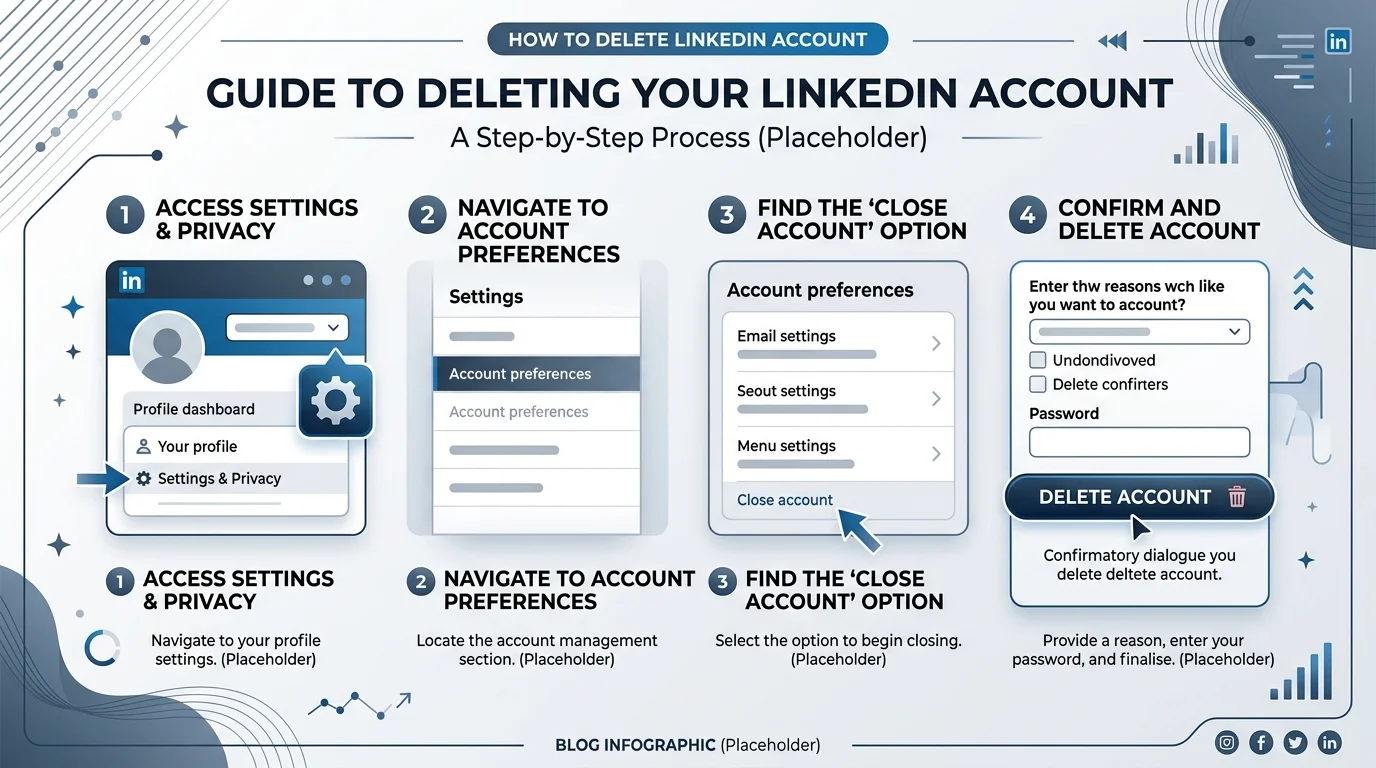
Click your profile picture (top right corner)
Select Settings & Privacy
Click Account preferences in the sidebar
Scroll to Account management
Click Change next to Close account
Choose your reason for leaving, then click Next
Enter your password
Click Close account
The flow's nearly identical — tap your profile icon, head into Settings, and follow the same path under Account preferences → Account management → Close account.
That's it. You're basically done.
Now here's where it gets interesting — and honestly, a little bittersweet.
According to LinkedIn's Help Center, you get a 14-day grace period before everything's permanently wiped. During that window, logging back in reopens your account automatically.
But — and this is a big "but" — even if you reactivate, some things are gone the moment you click "Close account":
Group memberships
Endorsements and recommendations
Pending or ignored invitations
Followers/followings
So treat that grace period as a "soft landing," not a full safety net.
Got two profiles floating around from an old job search or a forgotten sign-up? You've got two options here: merge the duplicate into your main account, or close the extra one outright using the same steps above. LinkedIn recommends merging when both accounts have valuable connections, and simple closure when the duplicate is essentially empty.
Once the grace period expires, that's it. No turning back.
Your connections, messages, posts, and articles are all permanently erased. None of it is recoverable — not by you, not by LinkedIn support.
One more thing worth knowing: search engines like Google might still show cached versions of your old profile for a little while, even after deletion. It usually fades within a few weeks as their index refreshes.
This happens more than you'd think.
Old email, forgotten password, account you haven't touched in years — sound familiar?
In that case, you'll need to contact LinkedIn support directly and provide proof of identity. It's a slower process, but it works. Expect a confirmation email within 24–48 hours once you've submitted your request. If you'd rather try self-service first, our guide on LinkedIn's customer service number and support options walks through the fastest ways to reach a real person.
How long does LinkedIn account deletion take?
Your profile disappears immediately, but full data purging completes after the 14-day grace period ends.
Can I recover my LinkedIn account after deleting it?
Yes, but only within 14 days — and even then, endorsements, recommendations, and group memberships won't come back.
Does deleting LinkedIn cancel my Premium subscription?
No. Cancel Premium separately under Settings → Subscriptions & payments before closing your account.
Will my profile still show up on Google after I delete it?
It might, briefly. Search engines cache pages and typically clear them within a few weeks.
What's the difference between hibernating and deleting?
Hibernating hides your profile temporarily with data intact; deleting permanently erases everything after the grace period.
Honestly? This depends entirely on you.
If there's even a small chance you'll want LinkedIn back someday — for networking, job hunting, or staying visible professionally — hibernation might be the smarter move.
But if you're truly done, and you've backed up everything you need, going the full deletion route gives you a clean, permanent break.
Deleting your LinkedIn account isn't complicated — but it is permanent, so a little prep goes a long way.
Here's your quick recap:
Back up your data
Check for enterprise account restrictions
Unlink third-party logins
Follow the closure steps
Understand the 14-day grace period before it's gone for good
Take your time, follow the steps above, and you'll walk away from LinkedIn on your own terms — no regrets, no lost data, no surprises.

Thomas Whitfield is a career coach and personal branding specialist who helps professionals at every level build a compelling LinkedIn presence. He writes about networking, visibility strategies, and using AI to stand out in competitive industries.
AIReplyBee is your AI-powered LinkedIn reply generator that helps you create authentic, engaging responses in seconds.
Generate your first replyWhat is a collaboration post? Learn how Instagram collab posts work, why they boost reach, and how to set one up step-by-step.
InMail on LinkedIn lets you message anyone, even outside your network. See how it works, pricing, credits, and tips to boost replies.
Learn how to use ChatGPT effectively with the PTCF framework, 7 practical steps, and a real before/after example that actually works.