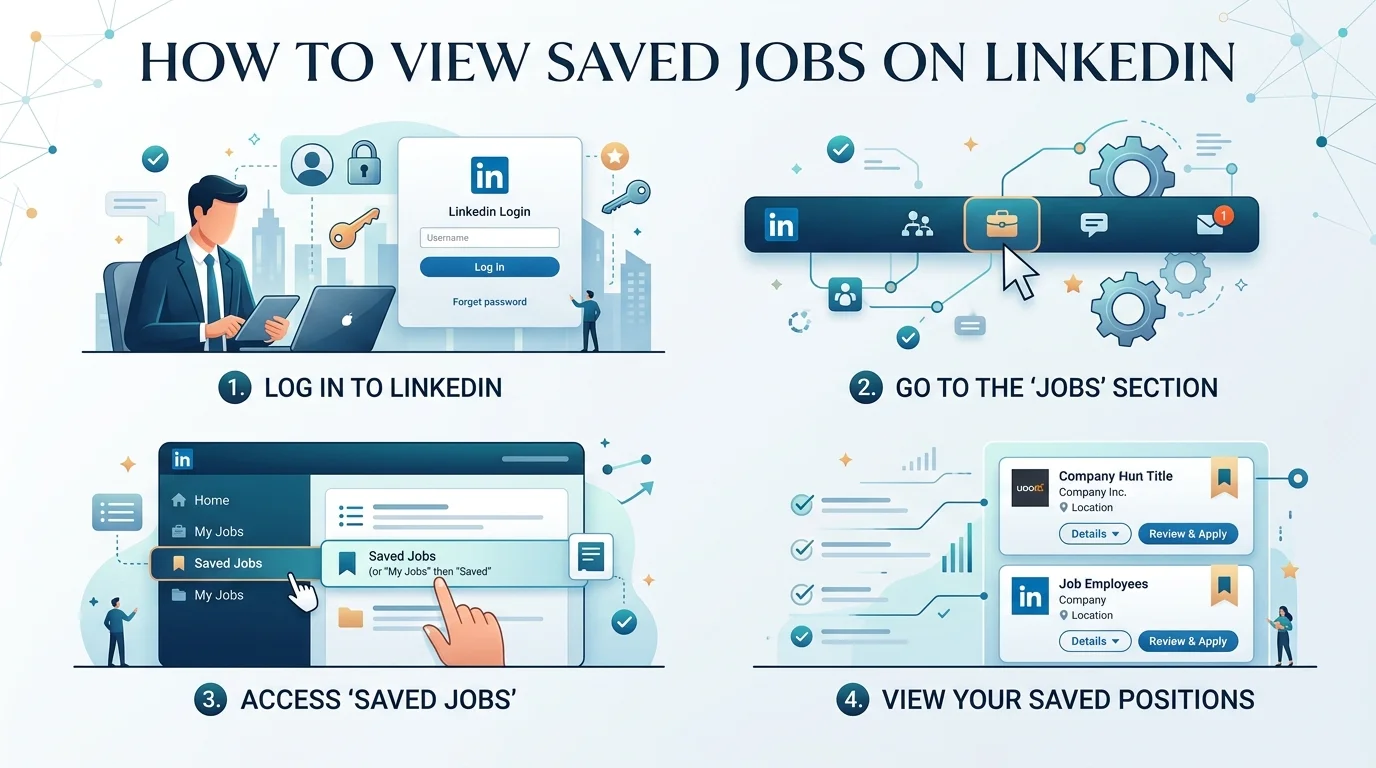
To view saved jobs on LinkedIn, click Jobs at the top of your homepage, then click My Jobs in the left-hand column on desktop — or tap Jobs > My Jobs > Saved in the mobile app. Below, I'll walk you through both methods step-by-step, plus what to do once you find them.
I've spent years digging into LinkedIn's job search features, and I can tell you this: most people save a job... and then lose it forever.
Sound familiar?
You click that little "Save" button, feel productive for a second, and then — poof — you can't find it again.
Today, that stops.
I'm going to walk you through exactly how to view saved jobs on LinkedIn, on both desktop and mobile, plus a few insider tips most guides leave out.
Let's get into it.
Here's the thing.
Job hunting is chaotic. You're scrolling, you're comparing, you're bouncing between fifteen tabs.
That's exactly why LinkedIn's saved jobs feature exists — it's your own personal shortlist, tucked away from the noise.
Think of it like a bookmarking system for your career. Instead of losing a great opportunity in an endless feed, you tap Save, and it's parked safely in your LinkedIn job tracker.
This pairs well with a broader habit — if you're serious about managing your job search efficiently, it's worth reading our guide on how to save time on LinkedIn so nothing slips through the cracks.
Let's compare both methods side-by-side, since the steps differ slightly depending on your device.
Step | Desktop | Mobile App |
|---|---|---|
1 | Log into LinkedIn | Open the LinkedIn app |
2 | Click the Jobs icon at the top | Tap the Jobs icon (briefcase) at the bottom |
3 | Click My Jobs in the left column | Tap My Jobs near the top |
4 | View your saved job listings | Tap the Saved tab |
Manage | Click More (•••) next to a listing to unsave | Tap the saved icon again to unsave |
That's the whole process, side-by-side. Same destination, slightly different route depending on where you're browsing from.
Here's something I always tell people: use the filters.
Once you're inside My Jobs, you can sort by location, company, or date posted. This turns a messy list into a curated job list you can actually act on — which matters a lot when you've saved 30+ postings and can't remember which ones you liked best.
This is one of the most common frustrations I hear about, so let's address it directly.
A few reasons this happens:
The posting was removed or filled by the employer — LinkedIn will sometimes drop it from your list.
You're logged into a different account than the one you used to save it.
App caching issues — try refreshing the app or logging out and back in.
The job was saved via "Save search" instead of "Save job" — these are two different features and live in different places.
If your saved jobs still aren't appearing after that, LinkedIn confirms that saved jobs must be managed manually — they don't auto-expire, so a persistent glitch is usually account-side and worth reporting to LinkedIn support.
Yes — LinkedIn does cap the number of jobs you can save at once. If you hit the ceiling, you'll need to unsave older or no-longer-relevant postings before adding new ones. This is another reason to revisit your list weekly rather than letting it pile up indefinitely.
This question comes up constantly, so let's clear it up right now.
Can your boss see that you saved a job? Can recruiters tell you're job hunting?
Nope.
Your saved jobs are private. LinkedIn keeps this activity fully separate from your public profile, so you can quietly build your shortlist without tipping off your current employer or your network.
That privacy layer is honestly one of the most underrated features of the whole platform — it lets you explore options at your own pace, without pressure.
Finding them is step one. But here's where the real strategy kicks in.
Don't just blast applications at everything you saved. Instead, revisit your list weekly and ask yourself: does this role still excite me? Has the posting changed? Is it still active?
LinkedIn also has an Applied jobs section that works hand-in-hand with your saved list. It shows you whether:
Your application was submitted successfully
A recruiter has viewed it
The job posting is still live
This combo — saved jobs plus applied jobs — gives you a genuinely powerful job application tracking system, completely free, built into the platform. Pairing it with the right LinkedIn productivity tools can make this process even faster.
Found a role that's perfect for a friend or former colleague? You can share it directly from your saved list. It takes ten seconds and strengthens your professional relationships.
According to a 2024 Octopus CRM report, 95% of recruiters actively use LinkedIn to source candidates. That means the platform isn't just a nice-to-have — it's often the main battlefield where hiring decisions start.
So when you build the habit of saving, organizing, and revisiting job listings consistently, you're building a job search strategy that keeps you one step ahead of everyone still scrolling aimlessly.
How do I view my saved jobs on LinkedIn?
Click Jobs > My Jobs on desktop, or tap Jobs > My Jobs > Saved in the mobile app.
Why can't I find my saved jobs on LinkedIn?
Usually it's a removed posting, a login mismatch, or an app caching issue. Try refreshing or logging back in.
Is there a limit to saved jobs on LinkedIn?
Yes, LinkedIn caps the number you can save — unsave older listings to make room for new ones.
Can employers see my saved jobs?
No. Saved jobs are private and not visible to your employer, recruiters, or network.
How do I unsave a job on LinkedIn?
Click the More (•••) icon next to the listing on desktop, or tap the saved icon again on mobile.
Look, job hunting is stressful enough without losing track of the roles you actually liked.
Now you know exactly how to:
View your saved jobs on both desktop and mobile
Fix it when your saved jobs don't show up
Filter and sort them efficiently
Use the Applied jobs section to track progress
Keep everything completely private
So go ahead — open LinkedIn right now, check your My Jobs tab, and see what's waiting for you.
You might be one saved listing away from your next big opportunity.
Read Also: How to Delete LinkedIn Account (2026 Guide)

Thomas Whitfield is a career coach and personal branding specialist who helps professionals at every level build a compelling LinkedIn presence. He writes about networking, visibility strategies, and using AI to stand out in competitive industries.
AIReplyBee is your AI-powered LinkedIn reply generator that helps you create authentic, engaging responses in seconds.
Generate your first replyWhat is a collaboration post? Learn how Instagram collab posts work, why they boost reach, and how to set one up step-by-step.
InMail on LinkedIn lets you message anyone, even outside your network. See how it works, pricing, credits, and tips to boost replies.
Learn how to use ChatGPT effectively with the PTCF framework, 7 practical steps, and a real before/after example that actually works.